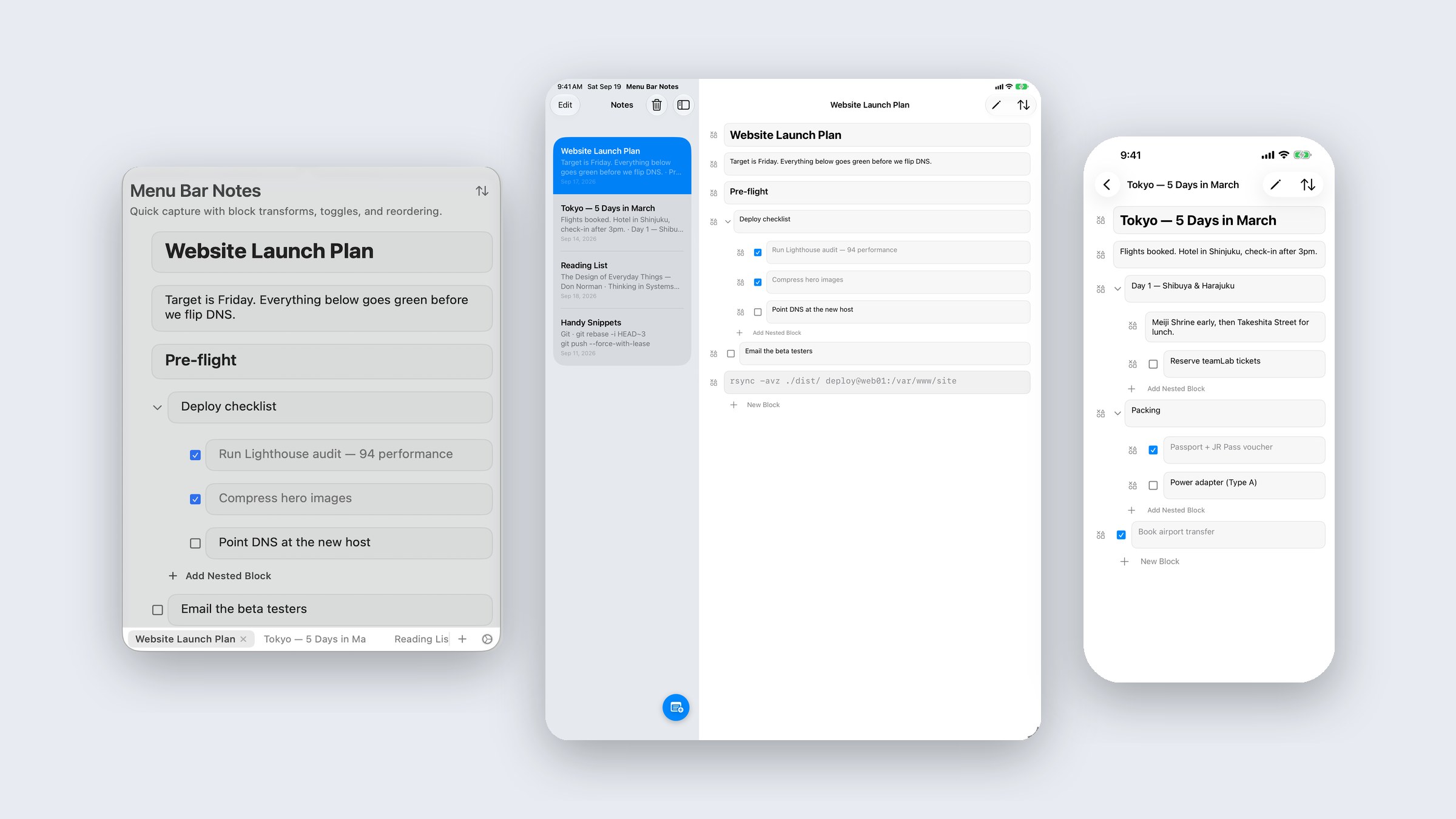
Most thoughts worth keeping arrive while you are doing something else. You are in a spreadsheet, a terminal, a video call, and a phone number or a half-formed idea shows up. By the time you have found your notes app, opened a new document and clicked into it, the thought has usually thinned out or gone.
Menu Bar Notes exists for that moment. It is a free notes app for Mac, iPhone and iPad, built around getting from “I need to write this down” to actually typing in about a second.
What Menu Bar Notes is
On the Mac it lives in the menu bar. Press Option-Command-N from any app and a small notes panel drops down with the cursor already in place. Type, press Escape, and you are back where you were. There is no Dock icon and no window to manage.
On iPhone and iPad it is a full notes app that shows the same notes, synced through iCloud. One free download from the App Store covers all three.
It is free, with no in-app purchases and no subscription. It asks for no account, because sync runs through the iCloud account already on your devices.
Notes made of blocks
Every note is a stack of blocks rather than one long page of text. There are six kinds: plain text, two sizes of heading, collapsible toggles that hold other blocks inside them, to-dos with a checkbox, and code in a monospaced font.
You can pick a block’s type from its menu, or just type a Markdown-style prefix at the start of a line and the block converts as you go:
#makes a large heading##makes a smaller heading>makes a collapsible toggle[]makes a to-do
Blocks can be reordered, duplicated, turned into another type, nested inside toggles, and, as of version 1.1, moved. Move to… sends a block and everything nested inside it to the bottom of another note, or splits it off into a new note of its own. It is the feature that turns a messy scratch note into several tidy ones without retyping anything.
On the Mac: a notes app that stays out of the way
The Mac version is designed to be opened and closed dozens of times a day. Notes appear as tabs along the bottom of the panel. Command-T opens a new note, Command-W closes the current one, and Command-1 through Command-9 jump straight to a tab. Return starts a new block, Shift-Return adds a line inside the current one, and the arrow keys move between blocks, so the whole thing can be driven without touching the mouse.
It works over full-screen apps, and it requires macOS 14 or later.
On iPad: its own layout, not a stretched phone app
Version 1.1 gave the iPad a layout of its own. Your notes sit in a sidebar with the editor beside it. Lines stay at a comfortable reading width on a large screen, the app follows the device into any orientation, and it behaves properly in resizable iPadOS windows. Shrink the window far enough and it becomes the iPhone layout, with the note you were editing still open.
With a keyboard attached, Command-N creates a note, Option-Command-N opens a second window, and Command-Return adds a block below the one you are in. With a trackpad, the controls highlight under the pointer.
On iPhone: capture with one thumb
The iPhone version opens to your list of notes, with a floating new-note button in the bottom corner where a thumb can reach it. New notes open with the keyboard up and ready. A toolbar above the keyboard switches the current block between text, headings, toggle, to-do and code without leaving the keys.
iPhone and iPad need iOS or iPadOS 17 or later.
Private by design
Menu Bar Notes has no accounts, no analytics, no advertising and no third-party services. The developer does not collect, transmit or have access to anything you write. Notes are stored on your devices and synced through the private database of your own iCloud account, which only you can read.
If you are not signed in to iCloud the app still works; the notes simply stay on that one device.
A Trash that forgives you
Deleting a note or a block does not destroy it. It goes to the Trash, where it stays for thirty days and can be restored with a swipe. Restoring a toggle brings back what was inside it when you deleted it, and leaves alone anything you had removed from it earlier on purpose.
Who it is for
Menu Bar Notes suits people who want a scratchpad more than a filing system. It is a good fit for developers who keep commands and snippets close at hand, for anyone who takes quick notes during calls, for students and writers collecting fragments through the day, and for people who like the block-and-toggle style of larger tools but do not want a workspace, a login or a monthly bill.
It is not trying to be a knowledge base. There are no folders, tags, attachments, shared notes or web version. That is deliberate: fewer decisions between you and the note.
Quick answers
Is Menu Bar Notes free? Yes. It is a free download with no in-app purchases and no subscription.
Which devices does it run on? Mac with macOS 14 or later, and iPhone and iPad with iOS or iPadOS 17 or later. One App Store download covers all of them.
Do I need to create an account? No. There is no sign-up. Sync uses the iCloud account already on your devices.
How do I open it quickly on a Mac? Press Option-Command-N from any app, or click its icon in the menu bar. Escape closes it.
Does it support Markdown? It supports Markdown-style shortcuts for block types: # and ## for headings, > for a toggle and [] for a to-do.
Does it sync between Mac, iPhone and iPad? Yes, automatically, through your private iCloud database.
Can the developer read my notes? No. The app collects nothing, and your notes live only on your devices and in your own iCloud.
What happens when I delete something? It moves to the Trash for thirty days and can be restored.
Get it
Menu Bar Notes: Quick Capture is free on the App Store for Mac, iPhone and iPad. Support is at support.aceconsole.com and the privacy policy is at privacy.aceconsole.com.